

A presenter, ready for a new setting
Separate a speaker from a busy room for tutorials, presentations or a branded backdrop. Inspect hair and hand edges before compositing.
 Dola AI
AI-generated example scenes illustrate background choices. They are not processed results from your uploaded video.
Move the divider to explore transparent and solid-color compositions for presenters and products.
Separate a speaker from a busy room for tutorials, presentations or a branded backdrop. Inspect hair and hand edges before compositing.
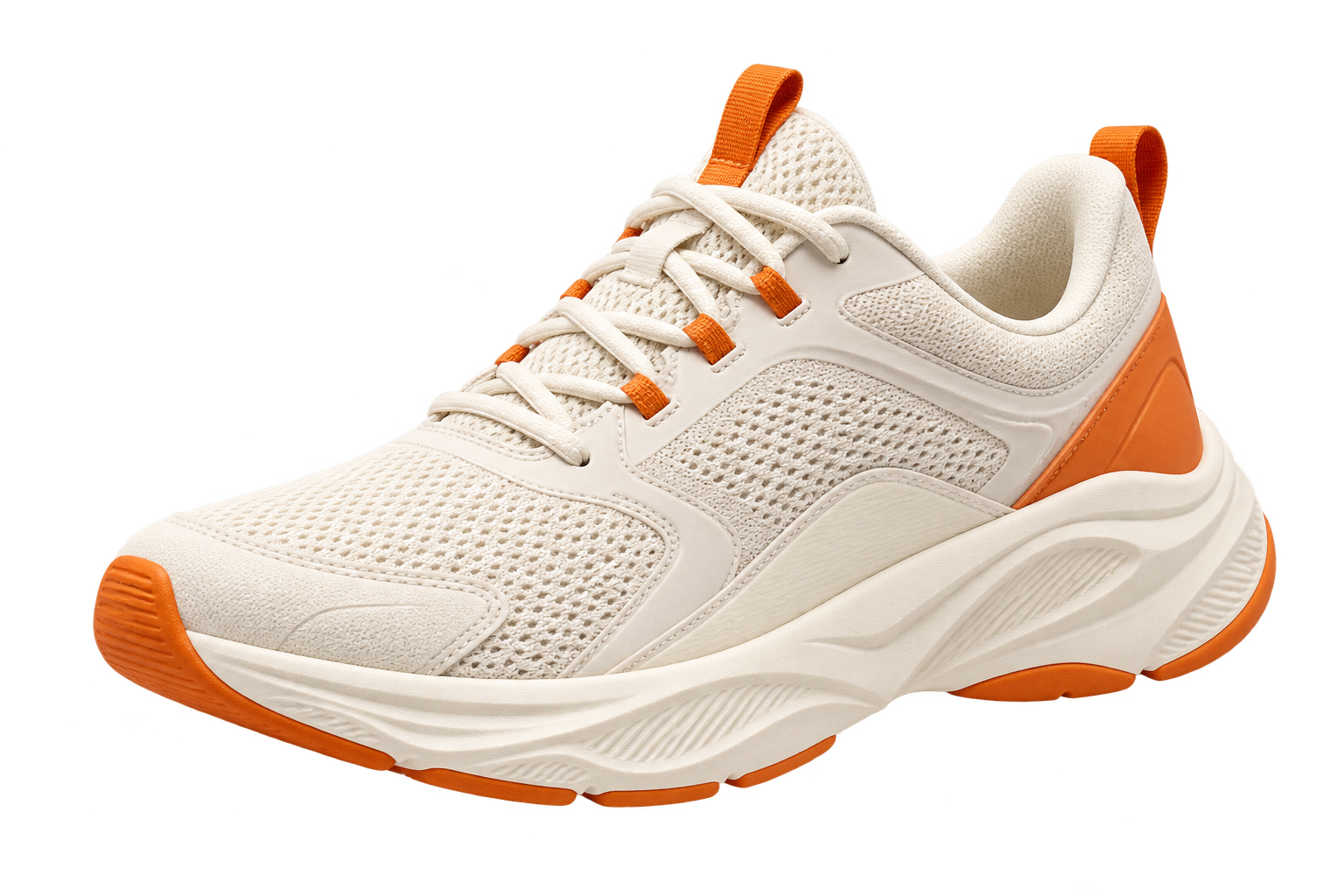
Explore a soft studio color for product storytelling. Keep the original proportions, and review laces, edges and shadows at the final display size.
AI-generated example scenes illustrate background choices. They are not processed results from your uploaded video.
Video background removal
A video background remover separates a person or object from the scene behind it. Use the cutout over a solid color, a new setting or another video—or preserve transparency for a later edit. Start by choosing what the final clip needs to show.
Upload an MP4, MOV or WebM up to 2 GiB. Export transparent WebM or MOV, or choose a green, white or black background for MP4. Pricing depends on duration and resolution.
Upload the source, let the background be removed, then check the result before you use it.
Add an MP4, MOV or WebM up to 2 GiB. WebM and MP4 outputs accept clips up to 10 minutes; transparent MOV accepts up to 60 seconds.
Choose transparent WebM or MOV for editing, or select MP4 and a green, white or black background. Example scenes illustrate possible compositions.
Check hair, hands and overlapping objects in the result. Review it at normal speed and against both light and dark backgrounds.
Choose transparent WebM for compatible browsers, transparent ProRes 4444 MOV for editing, or MP4 with a solid background.
| Format / codec | Typical use | Transparency considerations |
|---|---|---|
| MP4 / H.264 | Finished composition | Outputs the subject on a green, white or black background. H.264 MP4 does not preserve transparency. |
| WebM / VP8 + alpha | Compatible web playback | Transparent VP8 WebM. Check alpha playback in the target browser or editor. |
| MOV / ProRes 4444 | Editing handoff | Transparent ProRes 4444 MOV for editing apps. Clips can be up to 60 seconds and result files can be large. |
A checkerboard is a preview guide, not part of a transparent background.
Source footage and the intended destination matter as much as the background you choose.
Good lighting and a visible separation between subject and background make the boundary easier to inspect. Keep the original file to avoid unnecessary compression.
Hair, fast hands, motion blur and overlapping objects need particular attention. An acceptable paused frame can still flicker when played.
Match the new scene's lighting and framing. For a transparent handoff, confirm alpha-channel support in both the export and the receiving editor or player.
Practical answers about changing backgrounds, transparent video and what this workspace currently supports.
Upload the clip, choose the output format and start background removal. Download transparent WebM or MOV, or an MP4 with your selected solid background.
Yes. AI-assisted subject separation can work with an ordinary background. Chroma key instead removes a selected color and suits controlled green-screen footage. Complex hair, similar foreground and background colors, and motion blur may require corrections.
Choose MP4 output and select green, white or black. To add a custom image, download transparent WebM or MOV and composite it in your video editor.
Create a subject cutout and export an alpha channel using a compatible codec and container. Ordinary H.264 MP4 exports do not preserve transparency. Alpha-enabled WebM or ProRes 4444 can suit particular workflows, but the receiving editor or browser must support the exact file. A checkerboard is only a preview guide.
The price depends on video duration and resolution. One minute costs about 10 credits at 720p, 15 at 1080p, 29 at 2K or 38 at 4K. The server verifies metadata before charging. Failed tasks return their credits.
MP4, MOV and WebM up to 2 GiB, with a short side up to 2160 pixels. WebM and MP4 outputs allow 10-minute clips; transparent MOV output allows 60 seconds.
Fine strands, soft edges and motion blur can blend foreground and background within the same pixels. Check for missing detail, halos and flicker across frames. A transparent cutout should be reviewed on different background colors, not only against the original scene.
No. Video background removal changes the picture. Traffic, fan noise, music and other unwanted sound require an audio editing or noise-reduction tool. The original audio track is kept unchanged in the result.
The practical guide
Learn when to use subject separation or a green screen, how to review moving edges, and what a transparent video export actually needs.
Upload a clip and download the subject on a transparent background.
Back to the workspace