
How to Animate a Picture: Motion Prompts and Photo-to-Video Tips
Learn how to make a picture move, choose between camera movement and AI animation, write useful motion prompts and check faces, products and timing.
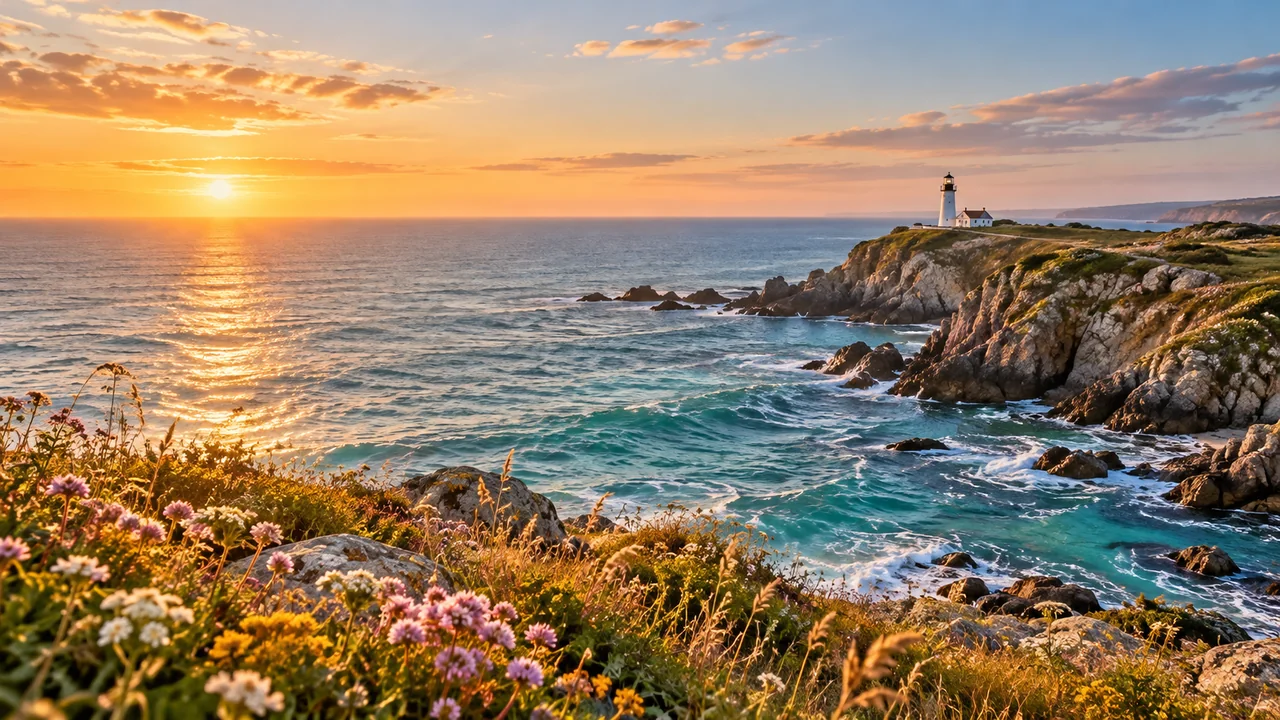
To animate a picture, first decide whether you need the camera to move across the photo or the subject to perform a new action. Those two goals require different kinds of animation, even when the starting image is identical.
The Image to Animation AI workspace turns a picture into an MP4: upload the image, describe the motion and generate with Seedance, Kling or Wan, with or without audio. The examples on that page move a still image; they illustrate a camera idea rather than a generated result.
1. Choose the kind of movement you need
| Goal | A suitable approach | What to check |
|---|---|---|
| Bring attention to one detail in a photograph | A slow pan or zoom across the existing image | Crop, image sharpness and the final framing |
| Have a person, animal or object perform an action | AI image-to-video generation | Identity, anatomy, object shape and continuity |
| Present several images in a sequence | A slideshow or video editor | Order, timing and transitions |
| Reuse movement already captured with an iPhone photo | A Live Photo workflow | Whether the source actually contains a Live Photo |
A camera move can be enough for a quiet product introduction or a travel photo. If the creative idea depends on a person turning, water moving or fabric blowing, new image content has to be created or supplied. A single photograph does not contain the original motion before and after its shutter moment.
Apple describes a Live Photo as a capture that includes the 1.5 seconds before and after the picture. That is recorded motion. AI animation creates a possible sequence from a still image, rather than recovering what really happened.
2. Prepare the picture before writing the prompt
Use a JPG, PNG or WebP file up to 20 MB in this workspace. Inspect the source at a useful size. A small preview can hide soft eyes, malformed fingers, damaged lettering or compression around an object. Start with the clearest copy available.
Think about the final crop as well as the subject. A zoom will remove part of the outer frame; a horizontal pan needs enough image area to travel across. If a person's head already touches the edge of the picture, a tighter composition may cut it off. You can often fix a framing problem before it becomes an animation problem.
For a product, decide which details are essential to its identity. A bottle shape, label, clasp or screen layout may matter more than a decorative reflection. For a portrait, compare the face throughout any future generated result, rather than accepting a clip because its first frame looks right.
3. Describe an action, then a camera direction
The starting image already supplies much of the appearance. A useful motion prompt focuses on what should happen next. Runway's image-to-video prompting guide makes this distinction between visual information in the image and movement described in the prompt.
Try a brief with three parts: the action, its pace and the camera behavior. These original examples are creative directions, not promises of a specific output:
| Picture | Example motion brief | Detail to review |
|---|---|---|
| A coastline | A slow camera push toward the headland while small waves approach the shore. | The horizon stays level and the coast remains recognizable. |
| A portrait by a window | The person gently turns toward the light. The camera holds the same framing. | Eyes, expression and face shape stay consistent. |
| A product on a table | The camera moves slowly from left to right while the product remains centered. | The product outline and label remain readable. |
| An illustrated garden | Leaves sway lightly while the view moves closer to the path. | The drawing style and linework remain coherent. |
Begin with one main action. If you request a smile, a turn, a walk, a camera orbit and a scene change in the same short shot, it becomes harder to identify why a result misses the brief. Change one part at a time when iterating in a generation tool.
4. Match the settings to the shot
Choose a model first, then select its available duration and resolution from the compact controls. You can also set the number of videos, Basic or Pro mode, an audio preference and prompt translation. These choices currently prepare a settings summary; they do not run a model, translate the prompt or establish a difference in generated quality.
Use duration to think about pacing. A short, quiet product reveal needs a different rhythm from a person completing an action. Resolution is the planned output size, not proof that an unclear source can regain missing detail. Sound should also be a deliberate choice: a moving picture does not necessarily need music, speech or environmental audio.
Actual model capabilities differ. For example, Adobe's image-to-video workflow combines image keyframes with text prompts. A control seen in one service should not be assumed to work identically in another.
5. Review motion as a sequence
When a generated clip is ready, watch it at normal speed, then pause at the beginning, middle and end. Compare the result with the original photograph and the brief you wrote.
- Check whether a face, animal or product remains recognizable throughout the shot.
- Follow hands, fine edges, lettering and repeated patterns as they move.
- Look for sudden changes in brightness, color or background geometry.
- Notice unexpected cuts, jumps or motion that contradicts the requested camera direction.
- Judge the final crop at the size and shape in which people will see it.
If a result looks strange, narrow the task before adding more instructions. A modest action and a clean starting image make the next attempt easier to evaluate. Exact identity preservation and perfectly stable motion cannot be guaranteed by a prompt alone.
6. Understand what a GIF does
An animated GIF is a file containing a sequence of image frames. It is a way to store animation, not an automatic method for making a person or landscape move. The MDN image-format guide describes GIF and other formats that support image animation.
Changing .jpg to .gif does not create intermediate frames. Similarly, converting a still image into a video container can create a clip that simply holds on the same frame. Check that an export contains the motion you intended, and choose its format according to where it will be shown.
Open the Image to Animation AI workspace to animate your picture. The credit cost is shown before you generate, and credits for a failed video are returned.